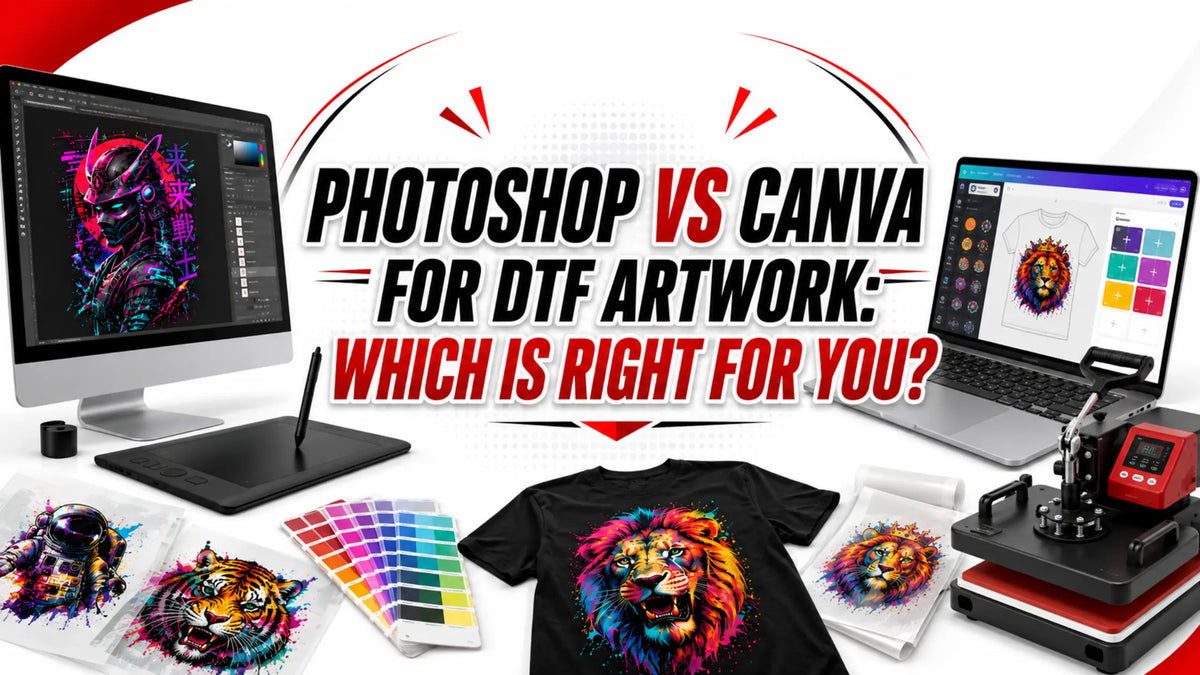
Choosing between Photoshop and Canva for DTF artwork depends on one thing: do you need professional control or speed? Photoshop gives you precision and power. Canva gets you results fast.
Understanding DTF Design Requirements
Before choosing software, know what DTF requires. Your artwork must be 300 DPI minimum and RGB color mode. Save it as PNG with transparency for best results. Learn DTF resolution standards to understand why these specs matter.
Both tools can meet these requirements. The difference is how much technical guidance you need along the way.
Photoshop: Professional Control
Photoshop is the choice for designers who need complete control. It's the industry standard used by studios worldwide. If you already know Photoshop, your DTF workflow will feel natural.
Setting up for DTF
Create a new document at your needed dimensions (in inches), set resolution to 300 DPI, and choose RGB mode. Then work in layers, flatten when finished, and export as PNG following your garment size.
Photoshop handles all technical requirements perfectly.
What you get
Complete control over every aspect of your design. Layers let you build complex artwork with multiple elements. Color management tools let you verify exact colors before printing. Advanced selection tools, brushes, filters, and effects give you nearly unlimited creative possibilities.
Photoshop also handles photo editing seamlessly. If your DTF designs include images, Photoshop is the professional choice. You can adjust contrast, brightness, and color balance to optimize photos for transfer printing.
The cost
Photoshop requires a Creative Cloud subscription at $20–$55 per month depending on your plan. The learning curve is steep if you're new to design software. Hundreds of tools, menus, and options can overwhelm beginners.
However, this investment makes sense if you design regularly or plan to scale your DTF business. Many professional print shops use Photoshop because it pays for itself through better quality and faster workflow once you master it.
Canva: Speed and Simplicity
Canva prioritizes getting results fast over technical control. It's built for non-designers with templates, drag-and-drop editing, and pre-built assets. You need zero design experience to create professional-looking work.
Setting up for DTF
Choose an apparel template (verify your size matches your actual gang sheet), customize it, then export as PNG. Canva guides you through every step automatically.
The whole process takes 15 minutes or less.
What you get
Thousands of templates designed by professionals. Drag-and-drop editing means zero learning curve. Built-in fonts, design elements, and stock images are included. The free version is genuinely useful for basic work.
Canva Pro ($120 per year) adds unlimited uploads, better export options, and access to millions of premium design assets. The workflow is so intuitive that someone with no design experience can create professional-looking work in minutes.
The limitation
Canva's free version exports at 72 DPI, not the 300 DPI DTF needs. Canva Pro offers high-resolution export, but you pay for it. Color management is basic. You can't verify exact pantone matches or adjust color profiles.
Canva works best for simple text designs and straightforward graphics. Complex artwork with gradients, fine details, and precise colors will not reproduce well. If your design involves photo effects or fine lines, Canva will disappoint you.

Comparison at a Glance
Here's how the two tools stack up side-by-side:
|
Factor |
Photoshop |
Canva |
|
Learning curve |
Steep |
Gentle |
|
Cost |
$20–55/month |
Free or $120/year |
|
DPI support |
300 DPI standard |
72 DPI free; high DPI with Pro |
|
Color control |
Advanced |
Basic |
|
Best for |
Complex designs |
Quick, simple designs |
|
Time to finish |
Hours |
Minutes |
|
Best for beginners |
No |
Yes |
When to Use Each Tool
Your choice depends on complexity and budget. Use Photoshop if you're creating artwork with gradients or photo effects. You also need Photoshop for precise colors and complex details. You're willing to invest time learning the software.
Use Canva if you need quick designs for text and basic graphics. Simple layouts with straightforward designs work well in Canva. You're new to design and prefer templates over blank canvases.
According to textile production standards, quality output depends more on your file specifications than your software choice. Both tools can deliver professional results if you follow DTF requirements.
Many designers use both. Canva for mockups, Photoshop for detailed work.
Preparing Your Artwork for DTF
Follow these technical steps regardless of your tool choice. Set your canvas size correctly for your specific garment. Verify 300 DPI resolution and RGB color mode.
Export as PNG to preserve transparency. Save a backup in your design tool's native format. Test with a small sample order before printing bulk quantities.
Getting Help with Your Design
If design isn't your strength, you're not alone. Design review can catch technical errors before printing. DTF Virginia offers artwork support to flag resolution issues, wrong color modes, or sizing problems.
Professional support saves money by preventing failed prints. This help is valuable before you order large batches.
The Bottom Line
Choose your tool based on your skill level and timeline. Photoshop dominates if precision and complexity matter. Canva wins if speed matters most and your designs are straightforward.
Neither tool is inherently better. They serve different needs for different workflows. Start with what fits your budget and experience. Try Canva's free version first if you're new to design. If you already know Photoshop, leverage that knowledge.
Test with small orders before committing to larger quantities. This approach works regardless of which software you choose.