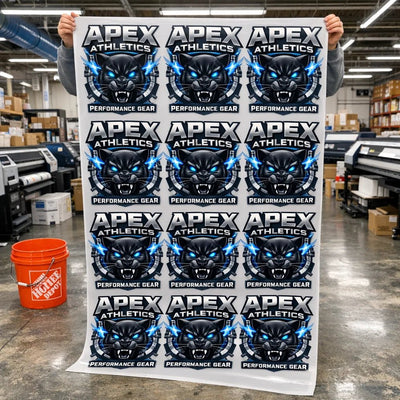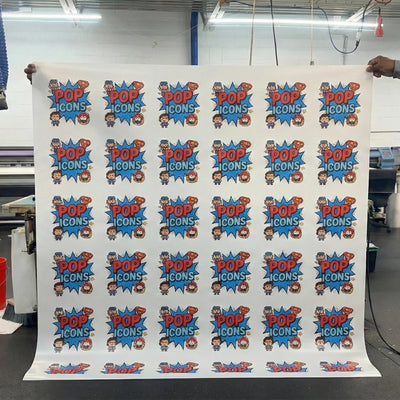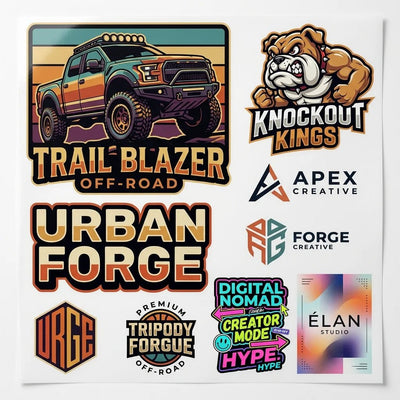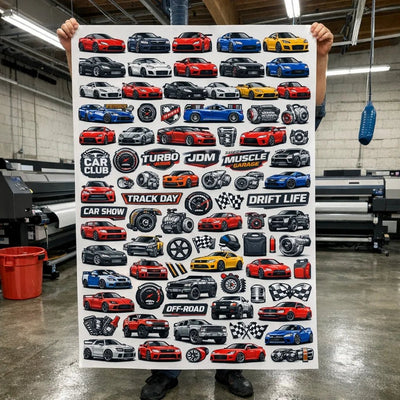
Resolution determines print quality more than any other factor. DTF transfers require specific resolution standards to produce sharp, professional results. Understanding DPI requirements prevents blurry prints and wasted materials.
Understanding DPI and Resolution
DPI stands for dots per inch. It measures how many pixels fit in one linear inch. A 300 DPI image has 300 pixels per inch horizontally and vertically.
Screen displays use 72 DPI as standard. Printed materials require 300 DPI minimum. The difference in DPI explains why screen designs look blurry when printed.
Resolution matters more for print than file dimensions. A small image at 300 DPI prints better than a large image at 72 DPI. High DPI compensates for small file sizes.
The 300 DPI Standard
DTF printing requires 300 DPI minimum for professional quality. This standard ensures sharp details and smooth color transitions. Below 300 DPI, prints appear pixelated and unprofessional.
Most professional printing services demand 300 DPI. This became industry standard across screen printing, digital printing, and DTF. Never submit below 300 DPI for commercial printing.
Ask your DTF supplier if they accept lower resolution. Some equipment handles 240 DPI adequately. Always confirm requirements before designing.
Resolution for Different Sizes
Large designs (8+ inches) work at 300 DPI without huge file sizes. A 10-inch logo at 300 DPI creates manageable file sizes. Larger designs spread pixels across more space, reducing apparent resolution needs.
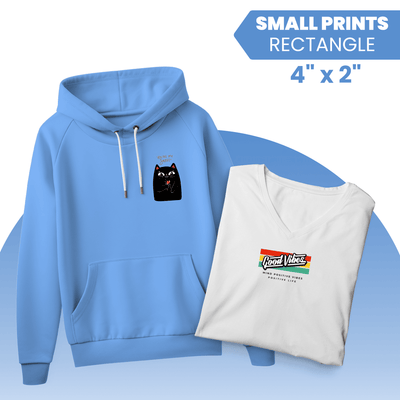
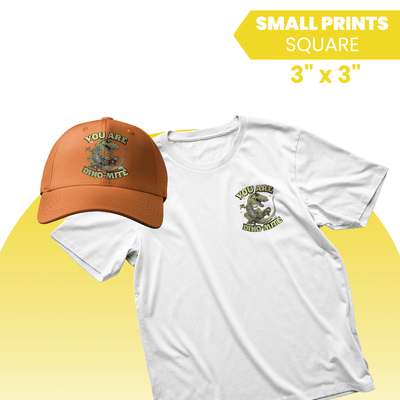
Small designs (under 2 inches) need 300 DPI minimum to avoid pixelation. Small logos at low DPI lose detail and clarity. Increasing DPI for small prints is critical.
Very small text (under 0.5 inches) may need 600 DPI to remain readable. Tiny details require extra pixel density for clarity.
File Size vs Quality Trade-Off
Higher DPI creates larger file files. A 300 DPI logo might be 2 megabytes while 72 DPI equals 500 kilobytes. Storage and upload speed increase with resolution.
Never sacrifice quality for smaller file sizes. The minimal upload time savings don't justify blurry prints. Quality always trumps file size in professional printing.
Compress files without losing quality. PNG and TIFF support lossless compression. Reduce file size without reducing DPI.
How to Check Your Image Resolution
Right-click image file and select Properties. Find image dimensions in pixels. Calculate DPI by dividing pixel dimension by intended print size.
Example: A 3000x3000 pixel image printed at 10 inches = 300 DPI (3000 ÷ 10 = 300).
Most design software displays DPI in image properties. Adobe Photoshop shows DPI in the Image menu under Image Size. Check before submitting files.
Common Resolution Mistakes
Assuming screen resolution works for print is the most common mistake. A 72 DPI design looks fine on screen but prints blurry. Always prepare files at 300 DPI regardless of screen appearance.
Using low-resolution stock images for printing creates disappointment. Free online images often default to 72 DPI. Verify resolution before using any image source.
Enlarging low-resolution images doesn't increase DPI. Scaling up maintains low DPI while making file size larger. Never enlarge low-resolution images hoping quality improves.
Upscaling Low-Resolution Images
Upscaling means enlarging a small image artificially. Software attempts to create new pixels through interpolation. Results never match native high-resolution images.
Modern upscaling software improved but still can't restore lost detail. A 72 DPI image upscaled to 300 DPI looks marginally better but never matches a native 300 DPI image. Avoid upscaling whenever possible.
Recreate low-resolution designs at proper resolution instead of upscaling. Contact original designers for high-resolution files. Spend time getting proper resolution rather than settling for upscaled versions.
Screen vs Print DPI Confusion
Screens display at 72-96 DPI regardless of original file DPI. A 300 DPI image appears identical to 72 DPI on screen. Never judge print quality by screen appearance.
Save designs at 300 DPI even if they look the same on screen. Print requirements differ from screen requirements completely. Always prepare for print standards regardless of screen preview.
This confusion leads many to submit low-resolution files. They look acceptable on screen but print poorly.
Quality DTF Printing Requirements
High-quality DTF transfers demand 300 DPI minimum. This ensures fine details reproduce accurately. Gradients and photographic images need 300 DPI to blend smoothly.
Simple solid-color logos work acceptably at 240 DPI. Text-heavy designs need 300 DPI for readable typography. According to the Specialty Graphic Imaging Association, 300 DPI represents the professional printing standard across all decoration methods.
Complex artwork with fine details benefits from 600 DPI. Photographic images with subtle shading print better at higher resolution. Consider subject matter when determining optimal DPI.
Different File Format Considerations
PNG files store pixel data, making DPI critical. A low-DPI PNG prints poorly. Ensure PNG files are 300 DPI minimum.
SVG files contain vector information, not pixels. SVG has no DPI because geometry has infinite resolution. Raster images imported into SVG still retain their original DPI.
Convert raster images to at least 300 DPI before importing into design software. This prevents resolution loss during the design process.
Resolution for Custom Transfers
Custom designs require 300 DPI minimum. Personal designs, one-off orders, and small batches all need proper resolution. Don't assume casual use allows lower standards.
Large volume orders demand even higher attention to resolution. Hundreds or thousands of prints amplify any quality issues. Submit the highest resolution possible for volume orders.
Archive files at high resolution. Future reprints require original files. Reusing low-resolution files from previous orders creates problems.
Testing Resolution on Samples
Request sample prints showing resolution quality. Digital previews don't reveal pixelation issues. Physical samples prove actual print quality.
Compare samples made from different resolution files. See firsthand how 300 DPI compares to 240 DPI or lower. This visual comparison eliminates guesswork.
Ask suppliers to show examples of resolution boundaries. Understanding where 300 DPI becomes acceptable educates decision-making.
Scaling and Resizing Properly
When resizing images, maintain DPI. Don't reduce DPI to achieve smaller file sizes. Quality degradation isn't worth marginal file size savings.
Resize proportionally to avoid distortion. Changing width without matching height creates stretched images. Maintain aspect ratios during any resizing.
Create multiple sized versions from a single high-resolution master. Prepare 3-inch and 10-inch versions from 600 DPI master files. Always downscale from high resolution, never upscale.
Final Words
300 DPI minimum is the professional standard for DTF transfers. Complex artwork and small designs benefit from 600 DPI. Never judge print quality by screen appearance since screens display at different resolutions. Prepare all files at 300 DPI minimum and submit the highest resolution possible for best results.