
Stay Updated on Facebook
Connect with us on Facebook for the latest updates, exclusive deals, and a behind-the-scenes look at DTF Virginia. Be part of our vibrant community today!
Facebook →If you print custom designs, you have probably heard of the term gang sheet. But what is a gang sheet, and how can it help you save time and money when printing? In this simple guide, we'll explain what a gang sheet is, how to make your own custom gang sheet, and why it is one of the smartest ways to use DTF transfers.
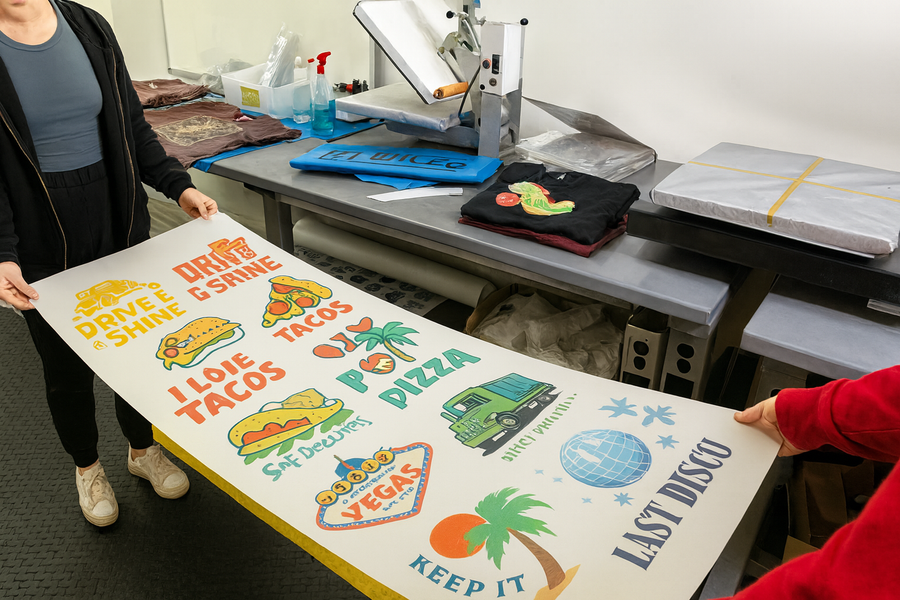
A gang sheet is a large sheet that lets you print many designs at once instead of one at a time. It is often used in DTF printing and is usually about 22 inches wide, but you can choose the length you need depending on how many designs you want to include. You can fit small logos, sleeve prints, or large back designs all on one sheet.
Using gang sheets is a simple and smart way to save money and time. Printing several designs together costs less than printing each one separately. It also helps you stay organized since all your designs are on a single sheet instead of scattered across different transfers.
Gang sheets are great for experimenting, too. You can print the same design in different sizes or colors to see what looks best. It’s also a good way to fill empty space with extra logos, small graphics, or test prints so nothing goes to waste.
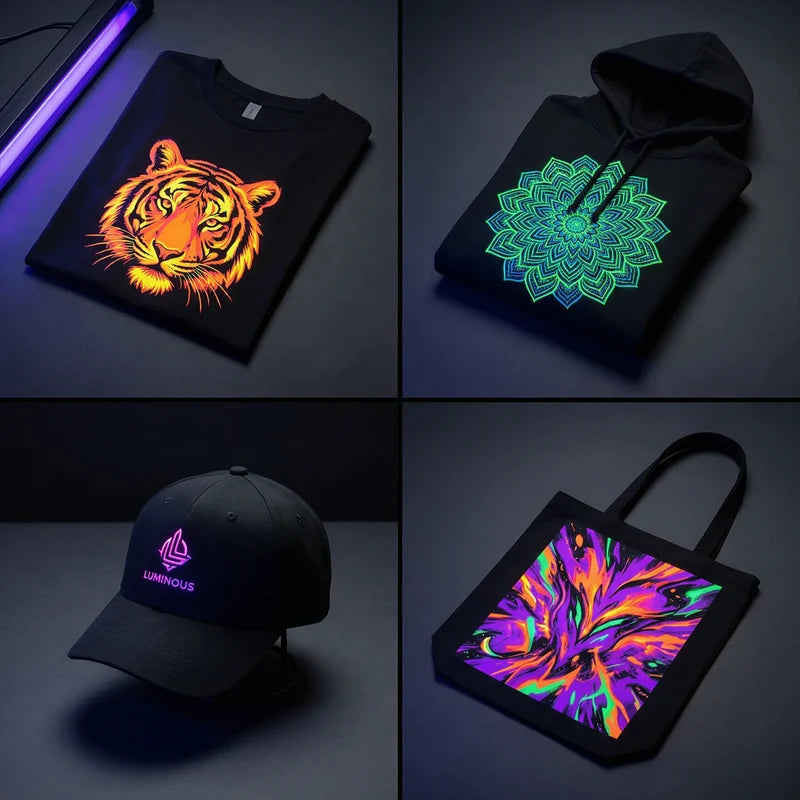
You can even add fun effects to your gang sheet, like glitter dtf or glow-in-the-dark finishes, to make your prints stand out. Glow effects work best on light colors, while glitter adds a shiny touch to any design.
In short, a gang sheet helps you get more out of your printing, whether you’re creating custom shirts for your business or trying out new design ideas at home.
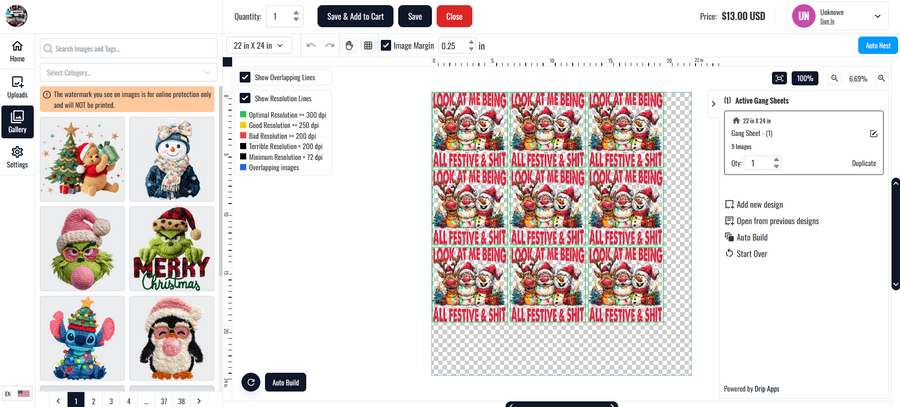
There are two main ways to create a gang sheet. The first option is to use an online gang sheet builder, which is fast and simple to use, even if you are new to printing. This tool lets you upload your designs, move them around, and adjust the sizes directly on your screen. It is a quick and beginner-friendly option for creating a layout that’s ready to print.
The second option is to design your gang sheet yourself using software such as Photoshop, Illustrator, or another graphic design program. Both methods work well. If you want something quick and easy, use an online builder. If you prefer to customize your layout and experiment with spacing, colors, or design sizes, creating it yourself might be the better option.
Our Gang Sheet Builder is an easy online tool that helps you create and organize your sheet without any design experience.
You can upload files in PNG, PDF, AI, PSD, EPS, or JPEG format.
How it works:
This option saves time and ensures your layout is print-ready with minimal effort.
If you’re comfortable with design software, you can create your own gang sheet manually.
Programs like Adobe Illustrator, Photoshop, or CorelDRAW let you arrange your designs exactly the way you want.
Tips for creating your own gang sheet:
This approach gives you more control and flexibility over your layout.
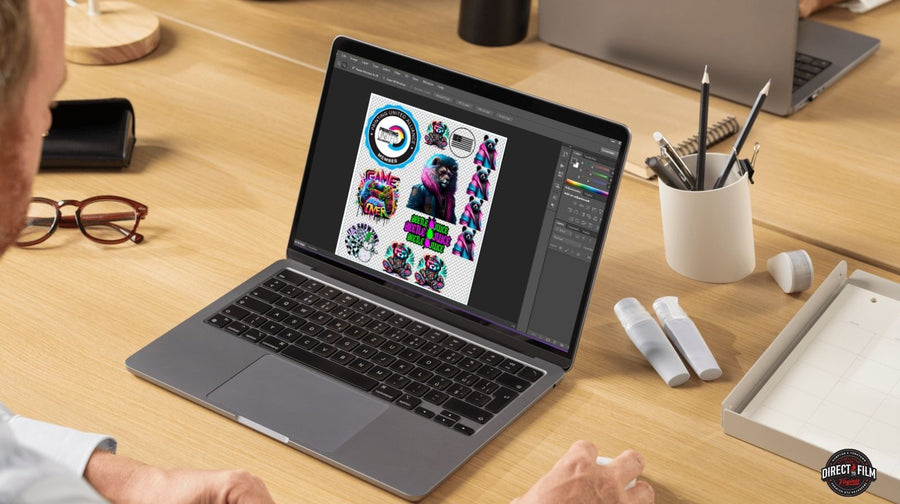
Creating gang sheets is simple once you get the hang of it, but a few small mistakes can make things harder than they need to be. Here are some common issues people run into when setting up gang sheets and the best ways to fix them.
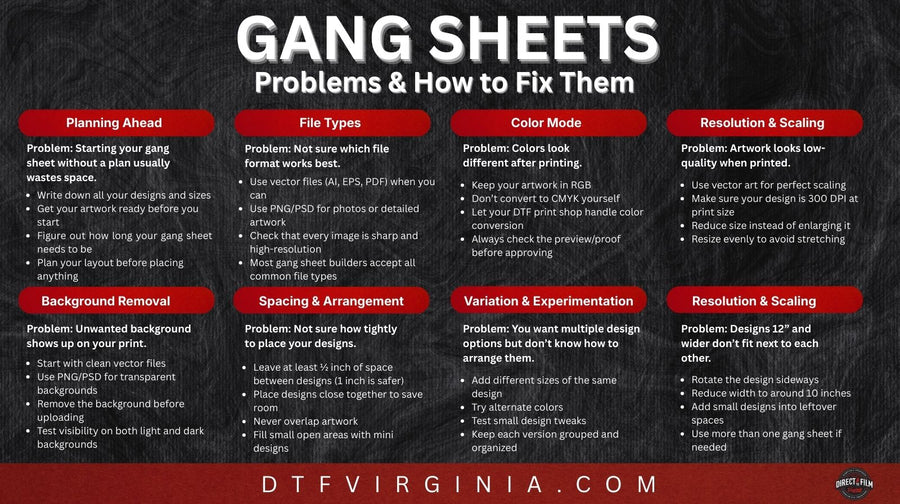
Challenge: Jumping into the design without a plan often leads to wasted space and extra work. You might start arranging your designs only to realize that your files are not sized correctly or that you do not have enough room on the sheet.
Solution: Before you start, take a few minutes to plan.
This helps you use space efficiently and avoid last-minute changes.
Challenge: Mixing different file types can cause problems with image quality or backgrounds. For example, some files may lose sharpness when resized, or others may include unwanted white boxes.
Solution: Use the right file type for the best print quality.
If you are unsure, use PNG files with transparent backgrounds or ask your printer what formats they prefer.
Challenge: Designs can look different on screen than they do after printing. This usually happens because of color settings.
Solution: Keep your designs in RGB color mode while creating them. RGB provides brighter colors and better results for DTF printing. Most printers convert your files automatically, so you don’t need to worry about switching to CMYK yourself.
Tips:
Challenge: Some designs look clear on your computer but print blurry or pixelated. This usually happens when the file is too small or stretched too much.
Solution:
Challenge: Solid backgrounds around your designs waste space and can make cutting harder.
Solution: Use files with transparent backgrounds whenever possible.
Challenge: Placing designs too close together makes them hard to cut apart, while leaving too much space wastes material.
Solution:
The goal is to use as much of your sheet as possible while keeping it easy to cut and press later.
Challenge: Testing multiple versions of your design (different sizes or colors) can become expensive and time-consuming when done one at a time.
Solution: Gang sheets make testing easy.
This helps you find what works best before printing in large quantities.
Challenge: Some large designs do not fit side by side on a 22-inch-wide sheet.
Solution:
Tip: Keep a small library of logos or small designs ready. They are perfect for filling in leftover space on your gang sheet.
Creating a custom gang sheet is one of the smartest ways to print more designs for less. With the right plan, clear files, and a little creativity, you can save money, speed up production, and bring more designs to life.
Whether you use our Gang Sheet Template or design your own, the process is simple and rewarding.
Ready to make your own?
Upload your designs to our Custom Gang Sheet Builder today and start printing like a pro.
A gang sheet is used to print several designs on one large sheet, helping you save space and reduce costs during production.
Yes. Gang sheets are perfect for DTF transfers. You can arrange all your designs on one film sheet and press them individually.
That depends on your printer or supplier. Many people use 22-inch wide sheets that range from 24 to 84 inches long.
No. While design software helps, many suppliers (including us) offer an online gang sheet builder where you can upload and arrange designs right in your browser.
Contact our team below with any questions regarding your order or enquiry
Your Creative Journey, Just a Click Away
Connect with us on Facebook for the latest updates, exclusive deals, and a behind-the-scenes look at DTF Virginia. Be part of our vibrant community today!
Facebook →Explore stunning visuals and creative inspiration on our Instagram feed. Share your creations with us and tag @dtfvirginia to be featured!
Instagram →Ready when you are
Stop wasting time on transfers that fade or crack. Get vibrant, durable prints your brand deserves.
Your cart is empty.
Continue shopping