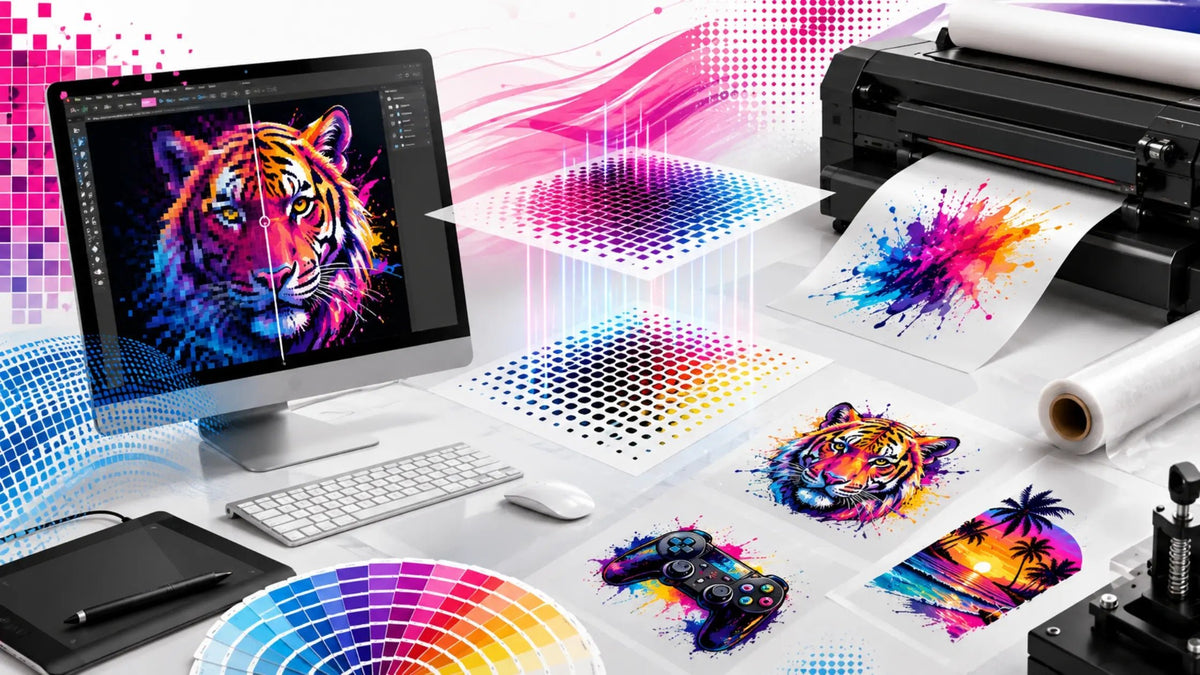
DPI and PPI sound similar but serve completely different purposes. Understanding the distinction prevents costly mistakes and disappointing results. Confusion between DPI and PPI causes most print quality problems for beginners and experienced operators alike.
What is PPI?
Definition and Purpose
PPI means pixels per inch. It measures image file resolution before printing. PPI tells you how many pixels exist in your digital image within one inch. A 300 PPI image contains 300 pixels in a one-inch length.
PPI applies only to digital files. Higher PPI means more pixel data and sharper images when printed.
Common PPI Values
72 PPI appears on screens and web graphics. 150 PPI works for large format printing. 300 PPI is the professional print standard. DTF printing requires a minimum 300 PPI for optimal quality.
What is DPI?
Definition and Purpose
DPI means dots per inch. It measures printer output resolution during actual printing. DPI describes how many ink dots the printer applies within one inch of printed material. A 1200 DPI printer creates 1200 dots per inch.
DPI only applies during printing. Your printer determines DPI through its mechanical capabilities. Different printers have different maximum DPI ratings. DPI affects print speed and ink consumption.
Printer DPI Specifications
DTF printers work at 1200 DPI to 2400 DPI. DTF printer resolution affects detail and speed. Standard printers operate at 1200 DPI while premium models reach 2400 DPI.
Quick Reference: DPI vs PPI Comparison
|
Aspect |
PPI (Pixels Per Inch) |
DPI (Dots Per Inch) |
|
What It Measures |
Image file resolution |
Printer output resolution |
|
When It Applies |
Digital design files |
Physical printing process |
|
Purpose |
Defines pixel data in image |
Defines ink dots placed on film |
|
Typical Values |
72, 150, 300 PPI |
600, 1200, 2400 DPI |
|
DTF Standard |
300 PPI minimum |
1200 DPI standard |
|
Can You Change It? |
Yes, in design software |
Set by printer capability |
|
Affects Quality? |
Yes (image sharpness) |
Slightly (fine detail) |
|
File Based? |
Yes |
No (printer hardware) |
|
Improves Blurry Images? |
No (must start correct) |
Cannot fix low PPI files |

The Critical Difference
They Measure Different Things
PPI measures image file data. DPI measures printer output. Think of PPI as ingredients in a recipe and DPI as a cooking method. Good ingredients plus proper cooking technique equals great results.
A 72 PPI image printed on a 2400 DPI printer still looks blurry. PPI quality cannot be fixed by DPI. Conversely, a 300 PPI image printed on a 600 DPI printer looks sharp and clean.
Where Confusion Starts
Software designers sometimes label PPI as "DPI" in image properties. File resolution settings often show "DPI" when meaning "PPI." This mislabeling causes real confusion in production. Check your specific software's documentation to verify what measurement displays.
Always assume the software means PPI when asking for resolution in file properties. Verify exact terminology with your equipment manufacturer to confirm. Clear communication prevents mistakes.
Practical Examples
Small Design at 300 PPI
A 2x2 inch design at 300 PPI contains 600x600 pixels. This prints cleanly and sharply. Enlarging to 4x4 inches requires 1200x1200 pixels, losing quality due to insufficient pixel data.
Large Design at 72 PPI
A 2x2 inch design at 72 PPI contains only 144x144 pixels. This appears pixelated and blurry when printed. Poor PPI quality cannot be fixed by printer quality.
Professional DTF Print
Design 8x8 inches at 300 PPI = 2400x2400 pixels. Printed on a 1200 DPI printer produces excellent quality. The same image on the 600 DPI printer looks good but is slightly less sharp.
Preparing Files Correctly
Starting with Right Resolution
Create designs at 300 PPI from the start. Changing resolution after creation damages quality. Increasing PPI after creation adds no actual pixel data. Decreasing PPI loses pixel information permanently.
Vector files like AI and SVG don't have PPI. They scale to any size without quality loss. Convert vector to raster at 300 PPI when exporting for printing. Export at final print dimensions to maintain quality.
File Format Matters
PNG and JPG files have fixed resolution. Once created at 300 PPI, they maintain that PPI. Resizing changes dimensions but not PPI value. A 300 PPI file enlarged to 200% becomes 150 PPI.
Raster files need 300 PPI minimum for DTF printing. Vector files need conversion to 300 PPI raster for final output. Plan your workflow accordingly based on file type.

Common Mistakes
Upscaling Low Resolution Files
A 150 PPI image enlarged to 300 PPI doesn't gain pixel data. Software duplicates existing pixels, creating blurry results. Never upscale low resolution files expecting quality improvement. Start with proper resolution. Low resolution causes vibrant issues beyond just blurriness.
Printer DPI Misconceptions
Setting printer DPI higher doesn't fix low PPI images. A 2400 DPI printer cannot create detail that doesn't exist in the 72 PPI file. Printer DPI quality ceiling depends on image PPI quality floor. No printer can improve what isn't in the file.
Lowering printer DPI to save ink and speed doesn't harm quality if PPI is sufficient. Verify minimum DPI for acceptable results with your equipment. Test different settings on sample sheets to determine acceptable balance.
Confusing Screen Resolution with Print Resolution
The screen display shows 72 PPI. The print design appears much larger on the monitor than the actual printed size. Always print test samples before committing to production. What looks good on screen can disappoint when printed.
Setting Up Your Workflow
File Creation Standard
Create all designs at 300 PPI minimum. Save and export at this resolution. Document your standard in team procedures.
Quality Verification
Verify 300 PPI in design software properties. Catch errors early to save materials.
Communication with Customers
Specify 300 PPI requirement when requesting artwork. Explain consequences of lower resolution. Provide specifications in writing.
Industry Standards
According to the Federal Trade Commission, consumer product quality standards require accurate specifications and testing. Professional print production maintains a minimum 300 PPI for raster images to meet quality standards. Guidelines recommend testing final output before full production runs. Following professional standards ensures consistent results.
Final Words
PPI measures image file resolution. DPI measures printer output. Both matter for quality prints. Start with 300 PPI files and proper printer settings for best results.
Know the difference. Apply it consistently. Your print quality and material costs will improve immediately.